Categories
Categories are the organizational backbone of any e-commerce catalog. Understanding how cobby handles categories - particularly the difference between replacing and adding categories - is crucial for maintaining catalog integrity at scale.
What Are Categories in E-Commerce?
Categories serve multiple purposes in an e-commerce system:
- Navigation: They provide the browsing structure customers use to find products
- Organization: They help you manage products logically
- SEO: Category URLs and structures impact search engine optimization
- Merchandising: They enable targeted promotions and featured product displays
The Multi-Category Challenge
Unlike physical stores where a product sits in one location, digital products can belong to multiple categories simultaneously. A "Red Leather Wallet" might appear in:
- Accessories > Wallets
- Men's > Accessories
- New Arrivals
- Sale Items
This flexibility is powerful but creates complexity when managing products in bulk.
Why Category Assignment Requires Special Handling
When you're assigning categories to products in bulk, a critical question arises: Should the new categories replace the existing ones or be added to them?
This seemingly simple question has significant implications:
Replace Mode (Destructive)
What happens: Existing categories are removed and replaced with new ones Use case: Restructuring products, moving items to entirely different category trees Risk: Accidentally removing important category assignments
Add Mode (Additive)
What happens: New categories are added while preserving existing ones Use case: Cross-merchandising, adding products to promotional categories, expanding visibility Risk: Accumulating unwanted category assignments over time
How cobby's Category Mass Actions Work
cobby provides explicit control over this behavior through its mass action system, which operates differently than standard single-product editing.
The Mass Action Context
When you select multiple products in the Category column, cobby recognizes that you're performing a bulk operation. At this point, it presents options that don't appear during single-product editing:
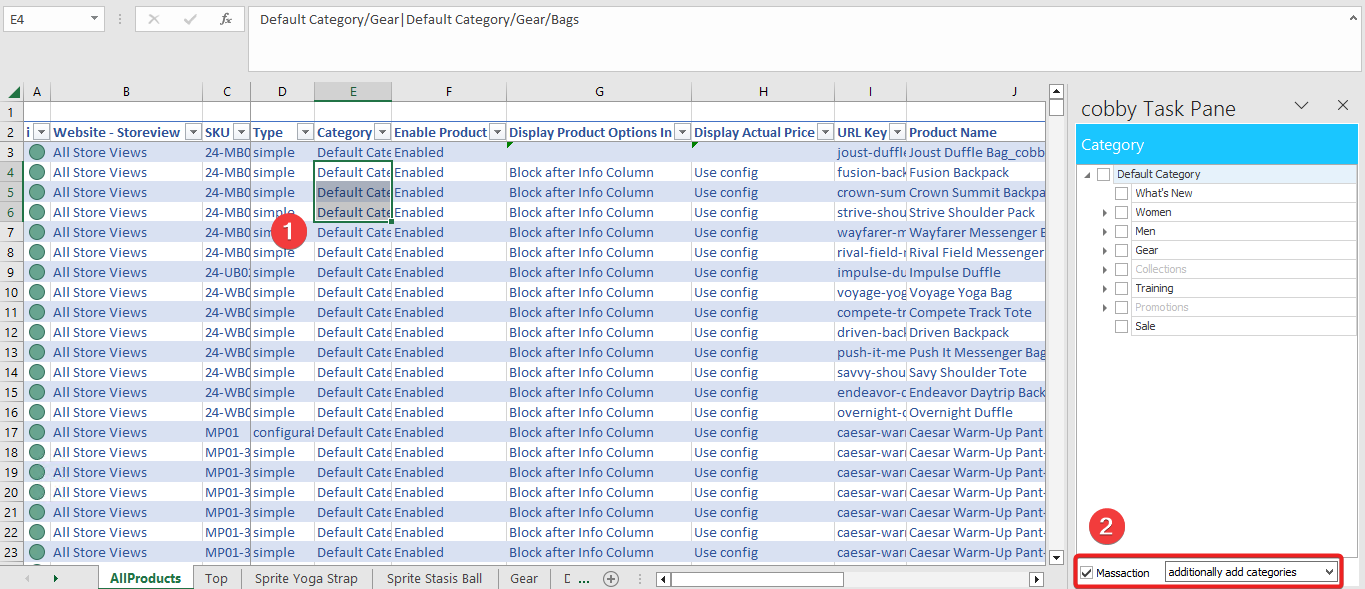
The "Massaction" checkbox appears at the bottom of the task pane with a dropdown menu offering:
- "additionally add categories" - Additive mode
- "remove categories" - Subtractive mode (removes specific categories while keeping others)
Why This Design? Single-product editing has an obvious intent: you're looking at one product and making a deliberate change. Bulk editing is ambiguous: are you replacing or adding? cobby makes you explicitly declare your intent.
The Visual Feedback System
When you add multiple categories to a product, cobby uses a specific visual representation:
Category Display: Categories are separated by the pipe character (|)
Category A | Category B | Category C
Product Status Change: When you make changes, the product status turns yellow
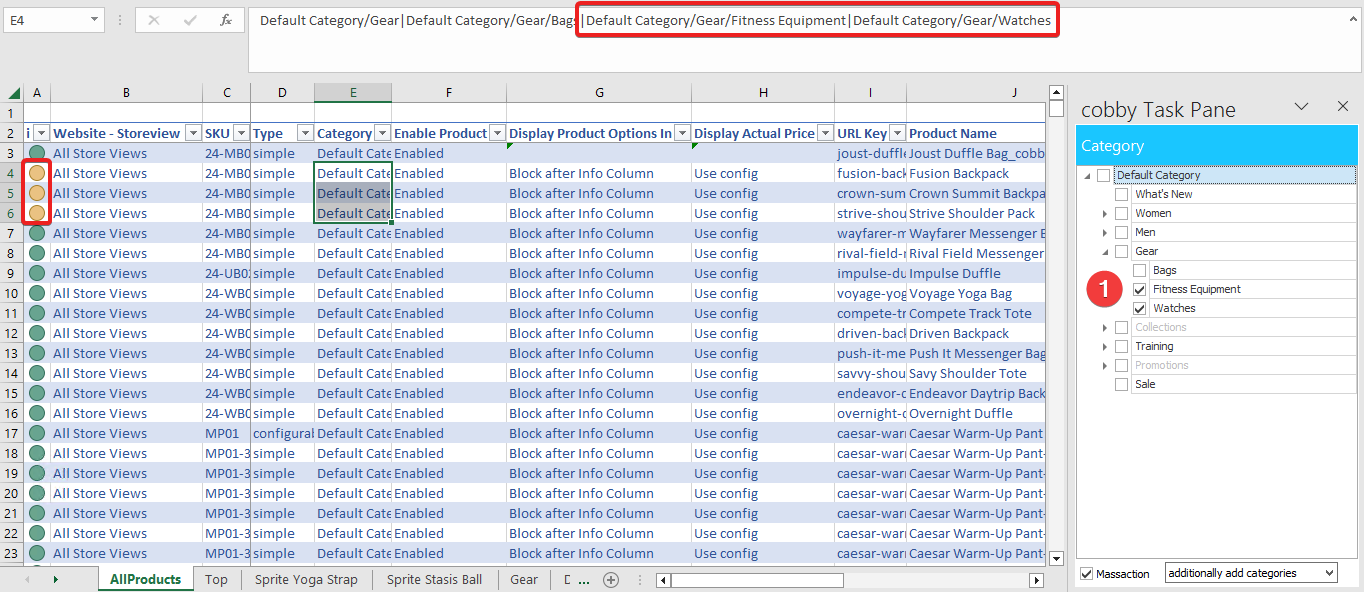
Why Visual Feedback Matters: In bulk operations affecting dozens or hundreds of products, you need immediate confirmation that changes are pending. The yellow status serves as both confirmation and a reminder to save your work.
The Persistence Guarantee
After saving, the task pane displays all selected categories for each product. This provides verification that:
- Your changes were applied correctly
- The additive operation preserved existing categories
- All intended categories are now assigned
Why This Architecture Matters
Preventing Accidental Data Loss
The most dangerous operation in catalog management is accidentally removing category assignments from hundreds of products. cobby's explicit mass action selection prevents this by:
- Making you deliberately choose "add" vs "replace"
- Requiring you to check the "Massaction" box
- Providing visual confirmation before saving
- Showing all categories after save for verification
Enabling Safe Bulk Operations
The additive category assignment allows you to:
- Add products to seasonal categories without disrupting their primary categorization
- Create promotional category groupings while maintaining organizational structure
- Experiment with new category structures without destroying existing ones
- Quickly cross-merchandise products across category trees
Time Efficiency at Scale
Being able to assign hundreds of products to additional categories in seconds rather than minutes or hours transforms how you can manage your catalog. This speed is only safe because of the explicit controls cobby provides.
Understanding the Separation Character
The pipe character (|) is used as a category separator because:
- It's visually distinct and easy to spot
- It's not commonly used in category names
- It provides clear visual boundaries between categories
- It's a standard delimiter in data management
When you see Electronics | New Arrivals | Featured, you're looking at three separate category assignments, not a hierarchical path.
Common Misconceptions
"Yellow Status Means Error"
Reality: Yellow status indicates pending changes, not errors. It's a safety feature that requires you to save explicitly.
"Categories Are Hierarchical Paths"
Reality: Each category separated by | is an independent assignment. A | B means the product is in both category A and category B, not that B is under A.
"Mass Actions Work Like Single Edits"
Reality: Mass actions have different behavior and require explicit mode selection. This is intentional to prevent accidental bulk changes.
Why Categories Need Special Attention
Categories are one of the few attributes where:
- Bulk changes can have wide-reaching consequences
- The intent (add vs replace) is ambiguous
- Accidental changes are difficult to undo
- The same product logically belongs in multiple places
This is why cobby treats category management differently than other attributes and provides explicit controls for bulk operations.