Task Pane (Shopware)
The cobby Task Pane in the Shopware environment is the central control panel displayed on the right side of the cobby interface. It provides workspace information, context-sensitive editing capabilities, and job monitoring across three tabs.
Toolbar
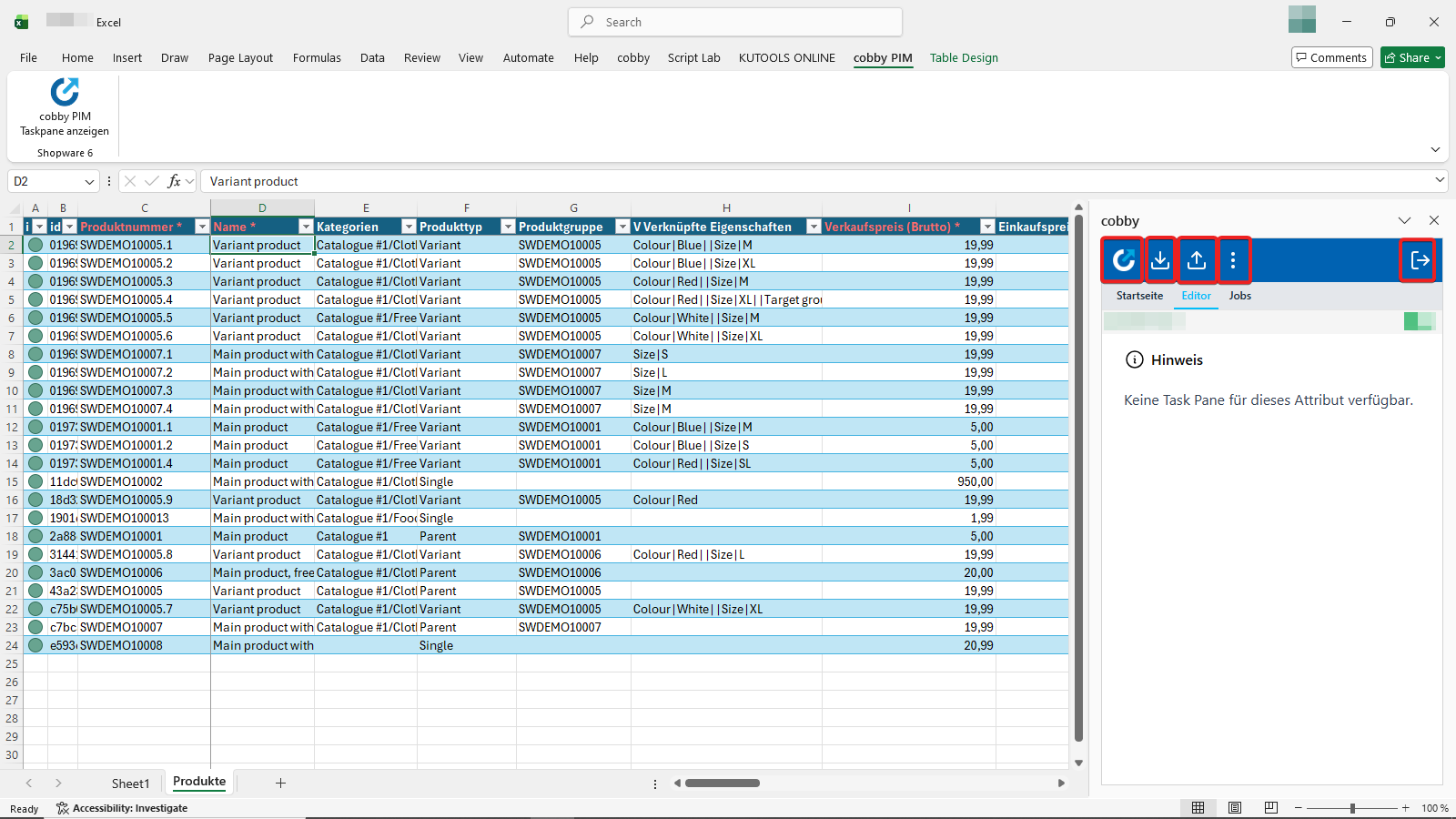
The dark blue toolbar at the top of the Task Pane contains five icons (from left to right) for navigation and core actions.
- Back to Home — Returns to the workspace selection screen where all connected shops are listed.
- Load Products — Opens the filter overview to select which products and columns to load into Excel. See Quick Start: Your First Product Edit (Shopware) — Step 3.
- Save Products — Saves all modified product data and transfers changes to the Shopware shop. Changes go live immediately.
- Three-dot menu — Contains two options: Go to Shop (opens the Shopware storefront) and Go to Shopware (opens the Shopware backend).
- Logout — Logs out the current user.
Tabs
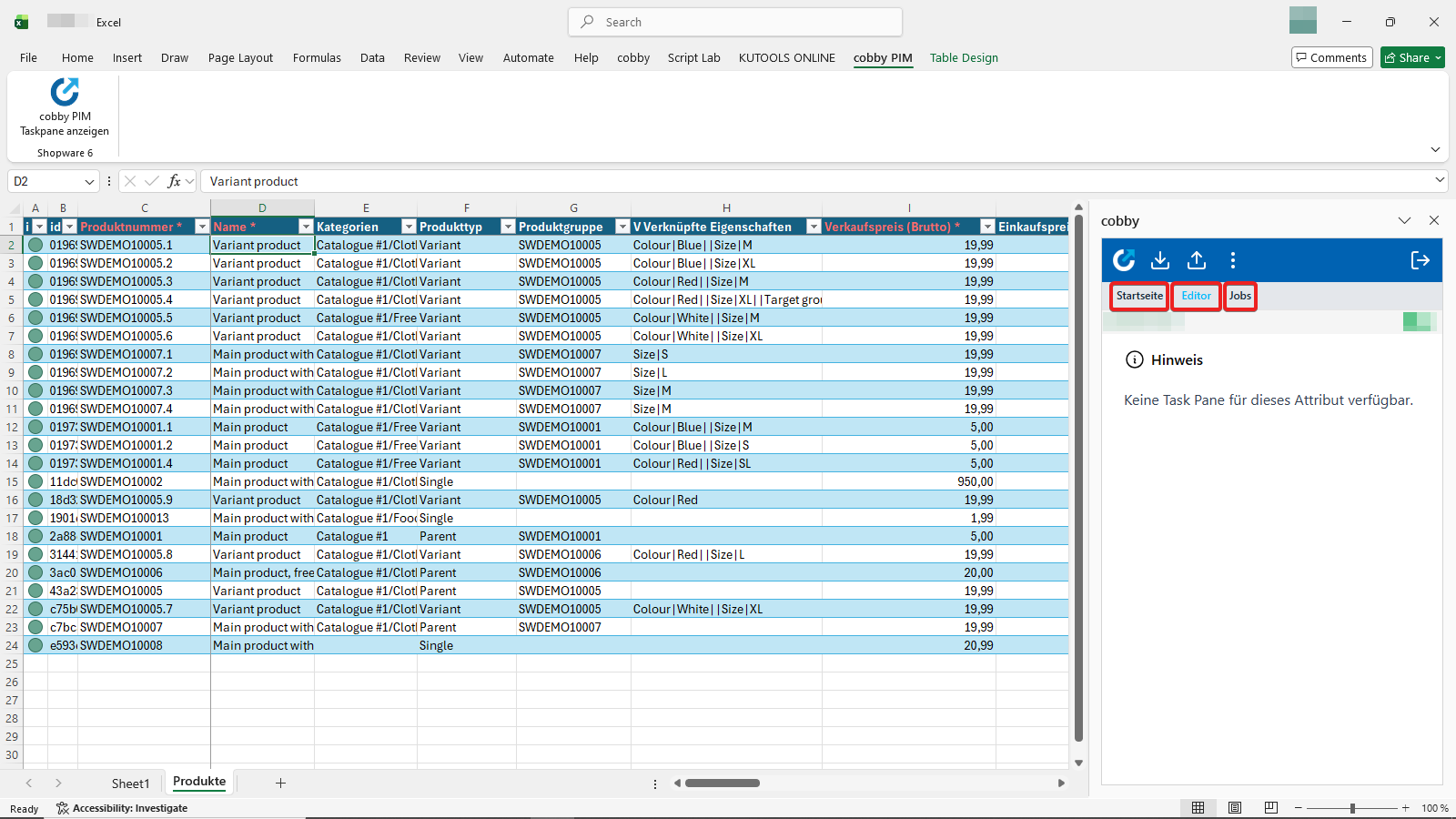
The Task Pane is divided into three tabs: Home, Editor, and Jobs.
Home
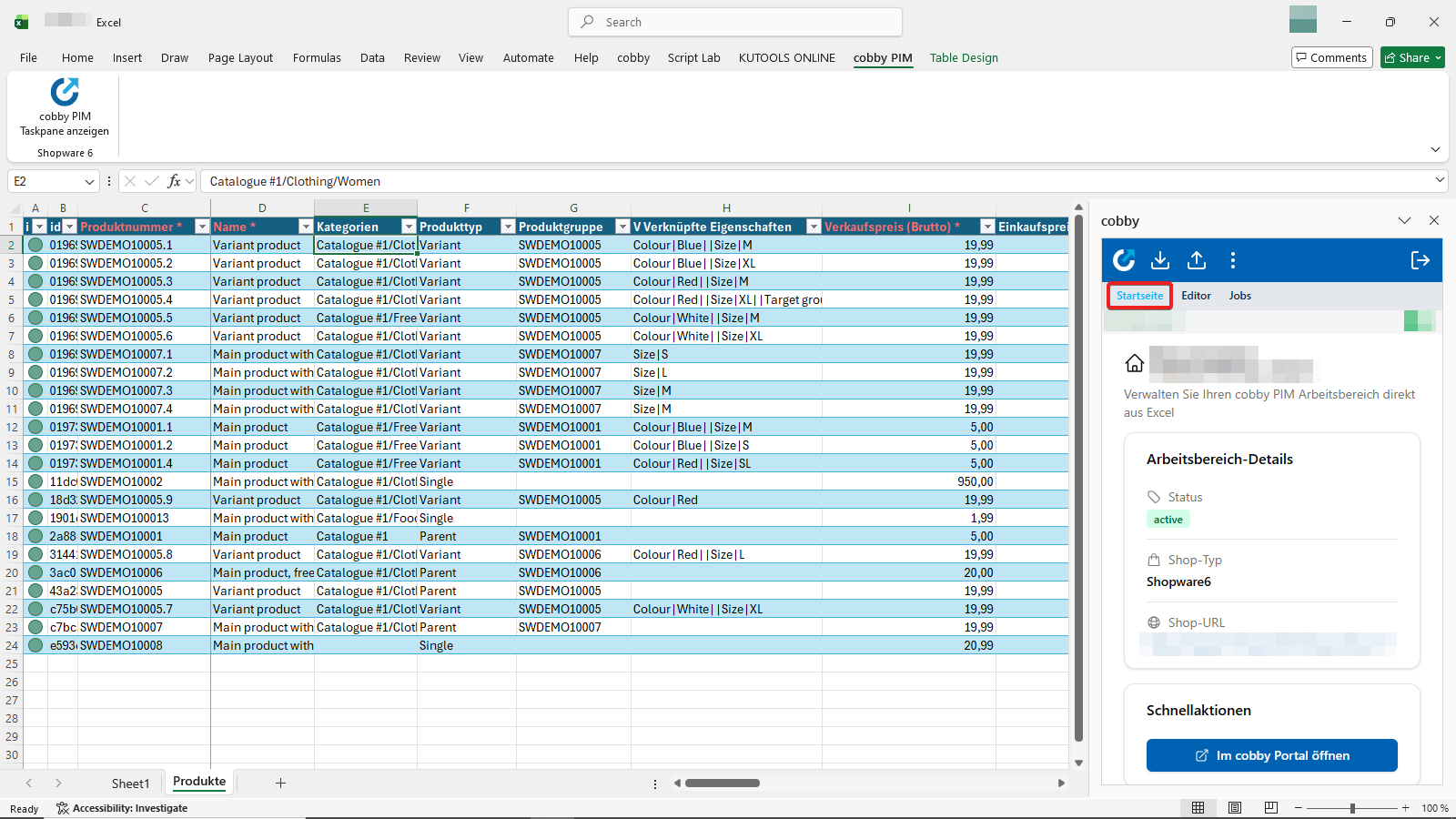
The Home tab displays workspace details for the currently connected shop:
- Shop Status — Current connection status of the shop.
- Shop Type — The type of connected shop (e.g., Shopware 6).
- Shop URL — The URL of the connected shop.
- Quick Action — Button linking directly to the cobby Portal.
Editor
The Editor tab provides a context-sensitive editing interface. The content displayed depends on which cell (column) is currently selected in the Excel sheet.
Attributes with Task Pane Support
The following attributes open a dedicated editing interface in the Task Pane when their corresponding cell is selected:
- Categories (see Quick Start: Your First Product Edit (Shopware) — Step 6)
- Linked Properties (see How to Edit Linked Properties (Shopware))
- Tax Rate
- Description (see How to Edit Product Descriptions with the HTML Editor (Shopware))
- Highlight Product
- Clearance Sale
- Free Shipping
- Visibility
- Hide in Product Listings
- Hide in Product Listings and Search
- Active
- Manufacturer
- Release Date
- Delivery Time
- Units of Measure
Not every attribute opens an editing interface in the Task Pane. If no Task Pane is available for the selected attribute, the message "No Task Pane available for this attribute" is displayed. These attributes can still be edited directly in the Excel cell.
Jobs
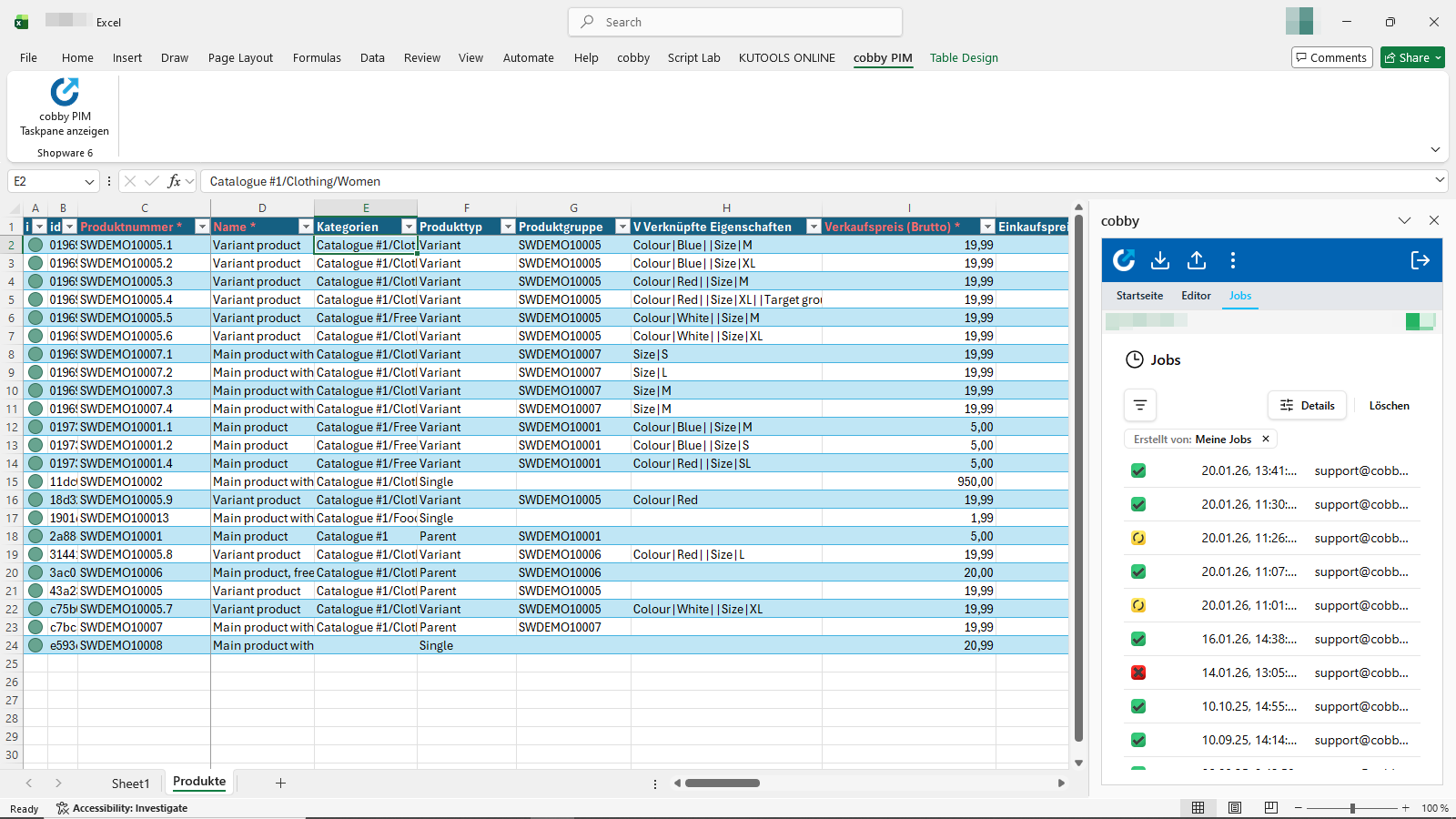
The Jobs tab provides a real-time overview of all executed jobs.
Displayed information per job:
- Status — Current job status (see below).
- Created Date — Timestamp of job creation.
- Created By — User who initiated the job.
Possible job statuses:
- Warning
- Finished
- Importing
- Info
- Pending
- Error
For a detailed description of each status icon, see Job History and Status Icons.
Filtering: Jobs can be filtered directly within the Task Pane by status (e.g., show only Error entries).