How to Show Hidden Columns
Learn how to reveal hidden columns in Excel and cobby workbooks.
Identifying Hidden Columns
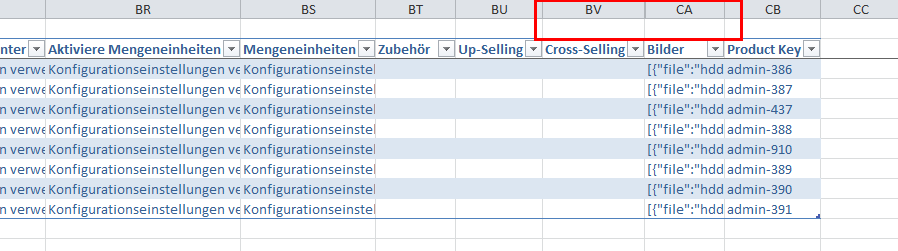
Look for gaps in the column header letters. For example, if you see columns A, B, D, E (missing C), then column C is hidden.
Step-by-Step: Show Hidden Columns
Step 1: Find Hidden Columns
Locate where columns are hidden by looking for jumps in the column letter sequence.
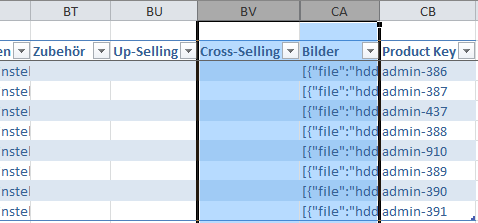
Step 2: Select Surrounding Columns
Click and drag to select the two columns on either side of the hidden column(s).
Example: If column C is hidden between B and D:
- Click column B header
- Drag to column D header
- Both B and D should be highlighted
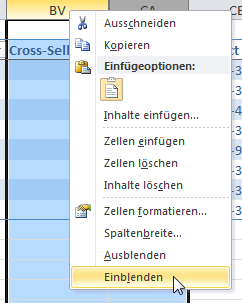
Step 3: Right-Click and Show
- Right-click on one of the selected column headers
- Select Unhide from the context menu
The hidden column(s) now appear.
Showing All Hidden Columns at Once
Method 1: Select All Columns
- Click the Select All button (triangle at top-left corner, above row 1)
- Right-click any column header
- Choose Unhide
Method 2: Use Name Box
- Type A:XFD in the Name Box (left of formula bar)
- Press Enter to select all columns
- Right-click any column header
- Choose Unhide
Showing Multiple Hidden Columns
If several columns are hidden in a row:
- Select the columns on both sides of the hidden range
- Right-click
- Choose Unhide
All hidden columns in that range will appear.
Repeat for All Sheets
Important: If you're working with multiple attribute sets in cobby, repeat the process for each sheet where columns are hidden.
Each worksheet maintains its own column visibility settings.
Why Columns Get Hidden
Columns may be hidden to:
- Reduce clutter
- Focus on specific attributes
- Improve workbook performance
- Create simplified views
Hiding Columns (Reverse Process)
To hide columns you don't need:
- Select the column(s) to hide
- Right-click the column header
- Choose Hide
For better control, use cobby presets to save column visibility preferences.
Tips
- Use presets: cobby presets remember which columns are visible
- Check all sheets: Hidden columns may differ across attribute sets
- Be careful: Don't hide critical columns like SKU or Name
- Document: Note why columns are hidden for team members
Troubleshooting
Can't select columns?
- Click directly on the column letter headers, not cells
- Try clicking once on each column while holding Ctrl
Unhide is grayed out?
- No columns are hidden in the selected range
- Check you've selected columns on both sides of the hidden ones
Column still not showing?
- The column width might be set to 0
- Select surrounding columns
- Drag the column border to make it wider
Multiple columns hidden?
- Ensure you've selected wide enough range
- Try selecting all columns (Select All button)
Alternative: Adjust Column Width
Sometimes columns appear hidden but are actually very narrow:
- Position cursor between column headers where you think a column is hidden
- When cursor changes to resize icon (double arrow)
- Double-click to auto-fit the column width
Working with Hidden Columns and Formulas
Formulas Still Work
Hidden columns:
- Continue to calculate
- Are referenced by formulas
- Maintain their data
- Are included in saves
Be Careful When Copying
When copying data:
- Hidden columns are included in the copy
- This might paste more data than you expect
- Consider unhiding first, then copying
cobby-Specific Notes
Preset Column Visibility
The better way to manage column visibility in cobby:
- Hide/show columns as desired
- Save configuration as a preset
- Apply preset to restore this view
Learn more: How to Manage Presets
Attribute Sets
Each attribute set (worksheet) can have different hidden columns:
- Simple products might show different columns than configurable
- Check each sheet if columns are missing
Related Topics
- Product Attributes and Scopes - Understanding how attribute sets determine which columns appear
- How to Manage Presets - Save column visibility settings
- How to Filter Product Data - Show/hide rows based on data
- How to Create Custom Product Views - Create and save custom column layouts