How to Add Images to Products
Goal: Add product images stored locally to your products using cobby formulas, either one image or multiple images per product.
Prerequisites
- Excel with cobby installed
- Images stored in a local folder or Magento's media/import folder
- Image names that match your product SKUs or a consistent naming pattern
Add One Image per Product
1. Prepare Excel
- Ensure cell format is set to General (not Text):
- Select your Images column
- Go to Home tab
- In the Numbers dropdown, select General

2. Create the Image Formula
- Click on a cell in the Images column
- In the formula bar, enter:
=IMAGES.ADD("C:\Users\YourPath\ImageFolder\"&[@SKU]&".jpg")

Formula components:
"C:\Users\YourPath\ImageFolder\"- Full path to your image folder (must end with\)&[@SKU]&- References the SKU column for the current product".jpg"- Image file extension
3. Get Your Image Path
- Press Windows key + E to open File Explorer
- Navigate to your image folder
- Click on the address bar and copy the full path
- Ensure the path ends with a backslash
\
4. Apply the Formula
- Click the Insert Function (fx) button
- Verify the formula is correct
- Click OK
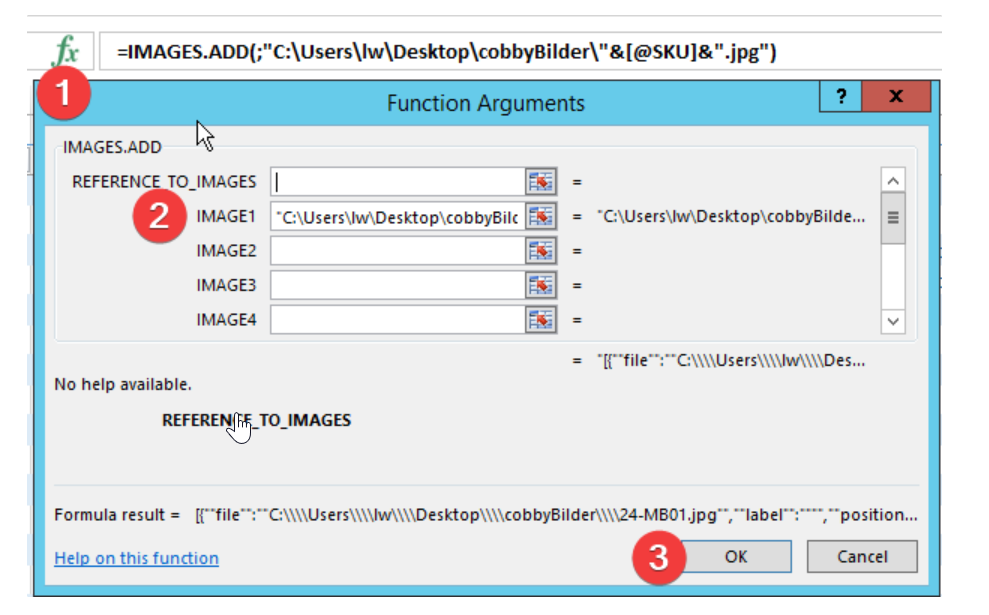
The formula structure should look like this:

5. Apply to Multiple Products
- Select the cell with your formula
- Drag the fill handle down to apply to other products
- The formula automatically adjusts for each SKU
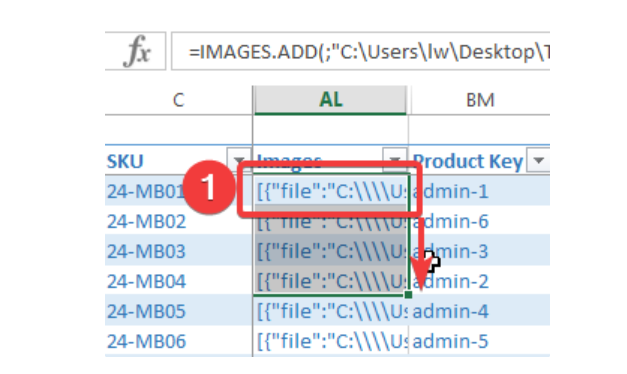
Add Multiple Images per Product
1. Prepare Image Files
Ensure all images for a product follow a consistent naming pattern:
- Main image:
24-MB04.jpg - Additional images:
24-MB04_2.jpg,24-MB04_3.jpg
2. Create Formula for First Image
Click in the first image cell and enter:
=IMAGES.ADD("C:\Users\YourPath\ImageFolder\"&[@SKU]&".jpg")
3. Add Additional Images
- Click Insert Function (fx)
- Add more image paths in the additional fields
- Adjust the file extension for each image position
Example for three images:
=IMAGES.ADD("C:\Users\YourPath\ImageFolder\"&[@SKU]&".jpg";"C:\Users\YourPath\ImageFolder\"&[@SKU]&"_2.jpg";"C:\Users\YourPath\ImageFolder\"&[@SKU]&"_3.jpg")
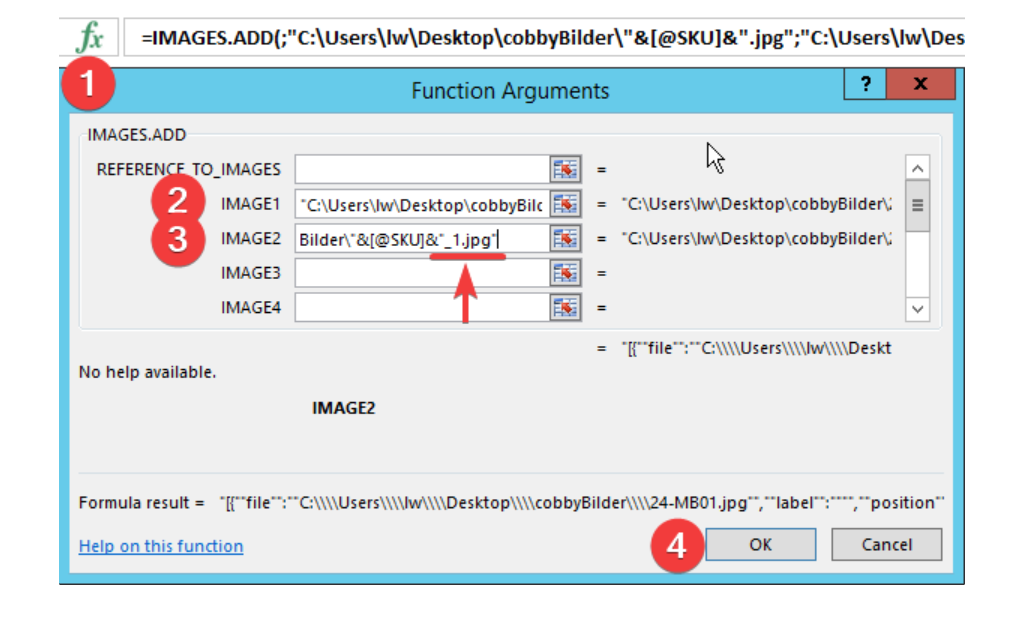
- Click OK when finished
4. Handle Variable Image Counts
If products have different numbers of images:
- Define formulas for the maximum number of images needed
- Non-existent images will be automatically hidden
- Hidden images won't appear in your store frontend
Using Images from media/import Folder
If images are already in Magento's media/import folder:
- Reference images by filename only (no path needed):
=IMAGES.ADD([@SKU]&".jpg")
- Or use the SKU directly if image names match exactly:
=IMAGES.ADD("24-MB01.jpg")
Troubleshooting
Formula appears as text
- Change cell format from Text to General
- Re-enter the formula after changing format
Images not found
- Verify the image path ends with backslash
\ - Check that image files exist at the specified location
- Confirm image names match exactly (case-sensitive)
- Ensure file extensions are correct (.jpg, .png, etc.)
SKU reference not working
- Click fx button and use the reference picker
- Click on the SKU cell while the formula dialog is open
- This ensures the correct column reference
Images not appearing in store
- Click Save products in cobby to sync to Magento
- Clear Magento cache if images still don't appear
- Verify images were uploaded successfully
Advanced Tips
Reference other columns: Use any column as the image name:
=IMAGES.ADD("C:\ImageFolder\"&[@[Product Name]]&".jpg")
Mix fixed and dynamic parts:
=IMAGES.ADD("C:\ImageFolder\Brand_"&[@Brand]&"_Product.jpg")
Use different image extensions:
=IMAGES.ADD("C:\ImageFolder\"&[@SKU]&".png")