How to Move Worksheets to Another Workbook
Learn how to copy or move Excel worksheets from one workbook to another.
When to Use This
Move worksheets when you need to:
- Split a large workbook into smaller files
- Combine worksheets from different files
- Archive specific sheets
- Share only certain worksheets with others
Step-by-Step: Move Sheets to New Workbook
Step 1: Open the Document
Open the workbook containing the sheets you want to move.
Step 2: Select Worksheets
Select the worksheets you want to keep:
- Click one sheet tab
- Hold Shift and click another to select a range
- Hold Ctrl and click to select non-adjacent sheets
Step 3: Right-Click
Right-click on one of the selected sheet tabs.
Step 4: Choose "Move or Copy"
Select Move or copy from the context menu.
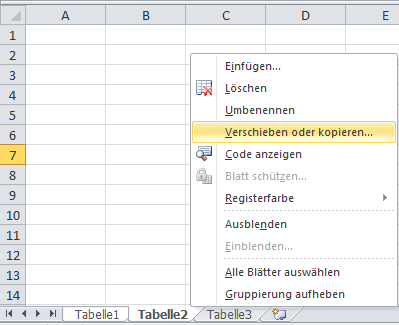
Step 5: Create New Workbook
In the dialog:
- Check Create copy (to keep originals)
- Select New workbook in the dropdown
- Click OK
Excel creates a new workbook with copies of the selected worksheets.

Step 6: Save
- Save the new workbook with a descriptive name
- When all desired worksheets are moved, you can delete the old document
Common Use Cases
Split by Attribute Set
Move each attribute set to its own workbook for easier management.
Archive Old Data
Move historical worksheets to an archive workbook.
Share Specific Data
Create a workbook with only the sheets others need to see.
Backup Specific Sheets
Copy important sheets to a backup file before major changes.
Move vs Copy
Copy (Recommended)
- Check "Create copy"
- Original sheets remain in source workbook
- Safer option
- Allows you to verify before deleting originals
Move
- Uncheck "Create copy"
- Removes sheets from source workbook
- Faster but riskier
- No undo after closing the file
Alternative Destinations
Instead of "New workbook", you can move/copy to:
- Another open workbook: Select from the dropdown
- Specific position: Choose where to insert (before which sheet)
- End: Place at the end of the workbook
Moving to Existing Workbook
Step 1: Open Both Workbooks
Open both the source and destination workbooks.
Step 2: Select and Right-Click
Select sheets in the source workbook and right-click.
Step 3: Choose Destination
- Select Move or copy
- In the "To book" dropdown, select the destination workbook
- Choose where to insert the sheets
- Check "Create copy" if you want to keep originals
- Click OK
Tips
- Always create a copy first: Verify everything worked before deleting originals
- Check formulas: Links to other sheets may break when moving
- Watch file size: Moving many sheets can create large files
- Name clearly: Use descriptive names for new workbooks
- Save immediately: Don't lose your work
Troubleshooting
Links broken after moving?
- External references become #REF! errors
- Update formulas to reference the new location
- Consider keeping related sheets together
Can't select multiple sheets?
- Make sure you're holding Shift or Ctrl while clicking
- Release other keys before clicking sheet tabs
Move or copy is grayed out?
- The workbook may be protected
- Check if you have permission to modify
New workbook has different formatting?
- Themes don't copy automatically
- Manually apply formatting or copy entire workbook