How to Search and Fix Formulas in Excel
Learn how to find and replace parts of formulas across multiple worksheets using Excel's Find and Replace feature.
When to Use This
Use Find and Replace for formulas when you need to:
- Update a formula used across multiple columns
- Fix recurring formula errors
- Change column references in bulk
- Update function names throughout the workbook
The Scenario
You've used a formula in several attribute sets and different columns. Now you need to change part of the formula without manually editing every cell.
Step-by-Step: Search and Replace Formulas
Step 1: Open Find and Replace
Press Ctrl+F or go to Home > Find & Select > Replace.
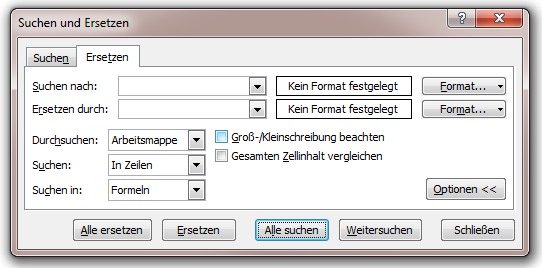
Step 2: Configure Search Settings
In the Find and Replace dialog:
- Browse: Set to Workbook (searches all sheets)
- Search in: Set to Formulas (not Values or Comments)
Step 3: Enter Search Criteria
In the "Find what" field, enter the formula part you want to change.
Example: If you want to change all references from [@Price] to [@Cost], enter:
[@Price]
Step 4: Preview Changes
Click Find All to see all affected cells before making changes.
Important: Review this list carefully to ensure you're only changing what you intend to change.
Step 5: Enter Replacement
In the "Replace with" field, enter the new formula part.
Example:
[@Cost]
Step 6: Replace All
Once you've verified the preview, click Replace All.
Common Use Cases
Update Column References
Find: [@[Old Column Name]]
Replace: [@[New Column Name]]
Updates all formulas referencing the old column.
Fix Function Names
Find: VLOOKUP
Replace: XLOOKUP
Updates all VLOOKUP functions to XLOOKUP (if available).
Change Calculation Method
Find: *1.2
Replace: *1.3
Changes markup from 20% to 30% across all formulas.
Update Sheet References
Find: Sheet1!
Replace: PriceList!
Updates all references to point to a renamed sheet.
Tips for Safe Replacement
1. Always Preview First
Click Find All before Replace All to see what will change.
2. Be Specific
Use unique text to avoid unintended replacements:
Bad: Find "Price" (too general, might match "Special Price", "Price From", etc.) Good: Find "[@Price]" (specific column reference)
3. Work on One Sheet
Set "Within" to "Sheet" if you only want to change formulas in the current worksheet.
4. Save Before Replacing
Save your workbook before doing bulk replacements. You can undo (Ctrl+Z) if something goes wrong, but saving provides an extra safety net.
5. Test on Sample Data
If unsure, create a copy of the workbook and test the replacement there first.
Advanced Search Options
Match Case
Check "Match case" to distinguish between:
[@price]vs[@Price]
Match Entire Cell Contents
Check "Match entire cell contents" to replace only exact matches.
Example: Find "Price" with this option will only replace cells containing exactly "Price", not "[@Price]*1.2".
Search by Format
Click "Options >>" to reveal more settings:
- Search by cell format
- Search within comments
- Search by rows or columns
Examples
Example 1: Fix Rounded Prices
Scenario: All prices use ROUND with 2 decimals, but you need 4 decimals.
Find: ;2)
Replace: ;4)
This changes all ROUND(...;2) to ROUND(...;4).
Example 2: Add IFERROR
Scenario: Add error handling to all VLOOKUP formulas.
Find: =VLOOKUP(
Replace: =IFERROR(VLOOKUP(
Then search for the end of VLOOKUP formulas and add the closing parenthesis.
Example 3: Update Markup Rate
Scenario: Change markup from 40% to 45%.
Find: *1.4
Replace: *1.45
Troubleshooting
No results found?
- Verify "Search in" is set to "Formulas"
- Check "Within" is set to "Workbook" (not just one sheet)
- Make sure your search text matches exactly (check spaces, brackets)
Too many results?
- Your search text is too general
- Be more specific (include brackets, operators, etc.)
- Consider searching one sheet at a time
Replacement broke formulas?
- Check for #NAME! or #REF! errors
- Undo with Ctrl+Z
- Review the preview list more carefully
- Test on a copy first
Can't find formula text?
- You may be searching "Values" instead of "Formulas"
- Change "Search in" to "Formulas"
Best Practices
Use Descriptive Column Names
Well-named columns make formulas easier to search and replace:
Good: [@[Purchase Price]], [@[Sales Price]]
Bad: [@Price1], [@Price2]
Document Formula Changes
Keep a log of formula updates, especially in shared workbooks:
- What was changed
- When it was changed
- Why it was changed
Test After Replacing
- Check a few affected cells manually
- Verify calculations are correct
- Save products and test in your store
Consider Templates
If you frequently change formulas, save templates in cobby with the correct formulas already in place.