How to Replace Image Labels
Goal: Update image labels (alt text/descriptions) for all product images using the IMAGES.REPLACELABELS function, either with the same label for all images or individual labels based on image position.
Prerequisites
- Excel with cobby installed
- Products loaded with existing images
- cobby version 1.38.1.1 or higher for advanced functionality
Understanding IMAGES.REPLACELABELS
The IMAGES.REPLACELABELS (German: BILDER.BEZEICHNUNGENERSETZEN) function replaces labels for all images of a product.
Two modes:
- Basic: Same label for all images
- Advanced: Individual labels based on image position
Basic Mode: Same Label for All Images
Syntax
=IMAGES.REPLACELABELS(ImageReference;"Label")
Steps
1. Create Helper Column
- Click on the Images column header
- Right-click and select Insert
- Name the new column (e.g., "Images Helper")
2. Copy Image Data
- Select all cells in the Images column
- Copy them
- Paste into the Images Helper column
- The original image data is preserved
3. Build the Formula
- Click the first cell in the Images column
- Click the fx (Insert Function) button
- Select category cobby
- Select function BILDER.BEZEICHNUNGENERSETZEN
- Click OK
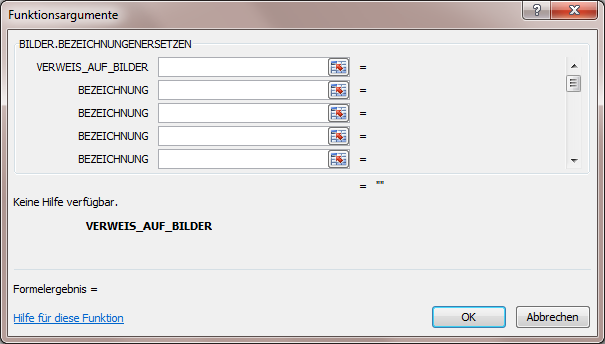
4. Configure Parameters
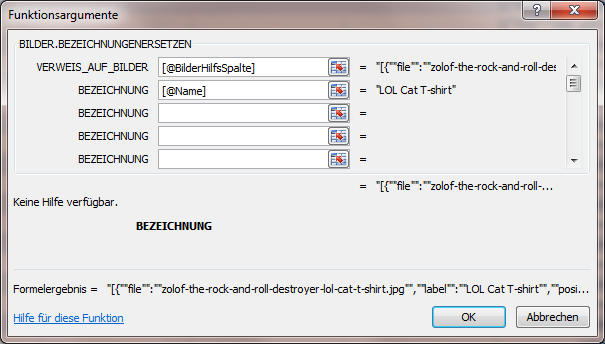
In the function dialog:
- Reference to Images: Click on the helper column cell (e.g.,
[@Column1]) - Label: Enter your label or reference a column (e.g.,
[@[Product Name]])
5. Apply to All Products
- Click OK
- The formula applies to the first product
- Drag the fill handle down to apply to all products

Examples
Use product name:
=IMAGES.REPLACELABELS([@[Images Helper]];[@[Product Name]])
Use custom text:
=IMAGES.REPLACELABELS([@[Images Helper]];"Product Image")
Combine column and text:
=IMAGES.REPLACELABELS([@[Images Helper]];[@Brand]&" - "&[@[Product Name]])
Advanced Mode: Individual Labels by Position
Syntax
=IMAGES.REPLACELABELS(ImageReference;"0:Label1";"1:Label2";"2:Label3")
The number before the colon indicates the image position (0-indexed).
Steps
1. Prepare Helper Column
Follow the same steps as Basic Mode to create and populate a helper column.
2. Build Position-Based Formula
- Click the first cell in the Images column
- Click fx button and select BILDER.BEZEICHNUNGENERSETZEN
- In the function dialog, add labels with position prefixes
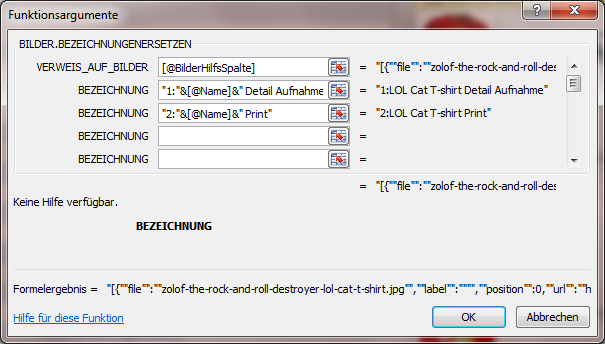
3. Configure Labels
Enter labels with position numbers:
For text labels:
"0:Main Product Image"
"1:Detail View"
"2:Side View"
For cell references:
"0:"&[@[Label Column 1]]
"1:"&[@[Label Column 2]]
For mixed text and cell references:
"0:"&[@[Product Name]]&" - Main View"
"1:"&[@[Product Name]]&" - Detail"

Formula Assistant Limits
- In formula assistant: Up to 20 individual labels
- Manual entry: Up to 100 individual labels
For more than 20 labels, manually edit the formula:
=IMAGES.REPLACELABELS([@Helper];"0:Label1";"1:Label2";...;"99:Label100")
Use Cases
SEO Optimization
Use product names and categories for better image SEO:
=IMAGES.REPLACELABELS([@Helper];[@Category]&" - "&[@[Product Name]])
Consistent Image Logic
If images follow a pattern (position 0 = front, position 1 = back):
=IMAGES.REPLACELABELS([@Helper];"0:"&[@[Product Name]]&" - Front View";"1:"&[@[Product Name]]&" - Back View")
Multilingual Labels
Reference columns with translated labels:
=IMAGES.REPLACELABELS([@Helper];"0:"&[@[Label_EN]];"1:"&[@[Label_EN_Detail]])
Marketplace Integration
Add specific labels for different marketplaces:
=IMAGES.REPLACELABELS([@Helper];"0:"&[@SKU]&" - Main";"1:"&[@SKU]&" - Detail")
Troubleshooting
Formula shows as text
- Change cell format to General
- Re-enter the formula
Labels not applying
- Verify helper column contains original image data
- Check that position numbers start at 0
- Ensure colon separates position from label
Wrong labels on wrong images
- Position numbers are 0-indexed (first image = 0)
- Verify image position in cobby Task Pane
- Check formula references correct positions
Formula too long
- Use cell references instead of long text strings
- Break into multiple formulas if needed
- Use Basic Mode if all labels are similar
Only first image gets label
- Verify you're using position syntax:
"0:Label" - Add position prefix for each label
- Check you're not using Basic Mode syntax
Advanced Tips
Dynamic Positioning
Use formulas to determine labels based on product attributes:
=IMAGES.REPLACELABELS([@Helper];
  "0:"&IF([@Color]<>"";[@[Product Name]]&" - "&[@Color];[@[Product Name]]);
  "1:"&[@[Product Name]]&" - Detail View")
Conditional Labels
Apply different label strategies based on product type:
=IF([@[Product Type]]="Configurable";
  IMAGES.REPLACELABELS([@Helper];[@[Product Name]]);
  IMAGES.REPLACELABELS([@Helper];"0:"&[@SKU]&" - Main"))
Bulk Apply with Variations
Create a separate column for label suffixes:
=IMAGES.REPLACELABELS([@Helper];
  "0:"&[@[Product Name]]&[@[Suffix 1]];
  "1:"&[@[Product Name]]&[@[Suffix 2]])