How to Preview Product Images While Working
Goal: Display product images in a separate window while editing product data, making it easier to write descriptions and verify image assignments.
Prerequisites
- Excel with cobby installed
- Products loaded with images
- cobby Task Pane accessible
Enable Image Preview Temporarily
1. Select a Product Image
- Open your Excel workbook with loaded products
- Navigate to any store view
- Click on a product's cell in the Images column
2. Open Image Preview
- The cobby Task Pane opens on the right side
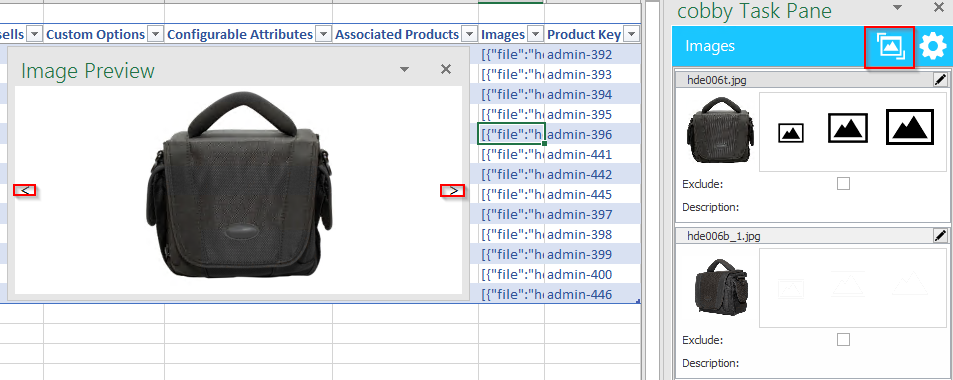
- Click on the picture frame icon in the Task Pane
3. Use the Preview Window
- A new window opens displaying the product's images
- The window stays on top of other windows
- Switch to different products - images update automatically
- Use arrow buttons to navigate through multiple images
Enable Image Preview Permanently
1. Access Settings
- Click on a product's Images column cell
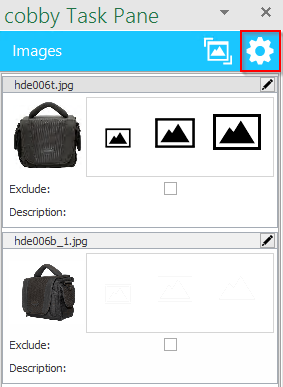
- In the cobby Task Pane, click the cogwheel icon
- Check the option "Always show Image Preview"
2. Save and Apply
- Click Save in the settings dialog
- Click Reload products in cobby
- The Image Preview window opens automatically

3. Disable When Done
To turn off permanent preview:
- Open cobby Task Pane
- Click the cogwheel icon
- Uncheck "Always show Image Preview"
- Click Save
Working with Image Preview
Navigate Images
- Use arrow buttons to move between images
- Images display in order of their position
- Click on any product to see its images immediately
Write Descriptions
- Open Image Preview window
- Select the product's description cell
- View the image while writing
- Switch between products without closing the preview
Verify Image Assignments
- Navigate through products using arrow keys
- Check that correct images are assigned
- Verify image quality and content
- Confirm image order and roles
Use Cases
✍️ Bulk Description Writing
- Enable permanent Image Preview
- Navigate through products row by row
- Write descriptions while viewing each product image
- Save time by not switching contexts
🔍 Image Quality Control
- Open Image Preview
- Review each product systematically
- Note products requiring new images
- Verify image resolution and clarity
📁 Category Assignment
- View product images while assigning categories
- Make informed categorization decisions
- Ensure products are in appropriate categories
✅ Product Data Verification
- Cross-reference images with product attributes
- Verify color, size, and style attributes match images
- Identify mismatched or incorrect data
Troubleshooting
Image Preview not opening
- Verify images are assigned to the product
- Check that cobby Task Pane is open
- Try clicking directly on the picture frame icon
Images not displaying (Magento 2)
- This is expected behavior for Magento 2
- media/import folder is protected via .htaccess
- Images cannot be displayed in preview
- Image import still works normally
Preview window disappears
- Check if window is minimized to taskbar
- Reopen by clicking picture frame icon in Task Pane
- If permanently enabled, reload products
Wrong images showing
- Click directly on the product's Images cell
- Wait a moment for images to load
- Verify the correct product row is selected
Navigation arrows not working
- Ensure product has multiple images assigned
- Check that images loaded successfully
- Try reloading the product
Important Notes
Magento 2 Limitations
In Magento 2, the media/import folder is protected via .htaccess configuration:
- Images cannot be accessed directly
- Preview feature won't display images
- Image import functionality is not affected
- All image operations work normally
Performance Considerations
- Large images may take time to load
- Multiple previews won't slow down Excel
- Preview window uses minimal system resources
- Close preview if experiencing performance issues