How to Abort a Sync in Shopware 6
This guide shows you how to abort a synchronization process when your Shopware 6 shop is stuck in the Indexing state.
Problem
Your Shopware 6 shop shows an Indexing state in the cobby Portal and the sync process appears to be stuck. This can happen when:
- The Shopware indexer is taking longer than expected
- A network interruption occurred during sync
- The shop server became unresponsive during the process
Prerequisites
- Access to the cobby Portal (app.cobby.io)
- A Shopware 6 shop connected to cobby
- The shop state shows Indexing or appears stuck
Steps
1. Open the cobby Portal
- Go to app.cobby.io.
- Log in with your credentials.
- Select your workspace.
2. Navigate to Shop Settings
- Click Settings in the left sidebar.
- Click Shop to open the shop management page.
3. Abort the Sync
- Click the Actions dropdown in the top-right corner of the shop card.
- Select Abort from the dropdown menu.
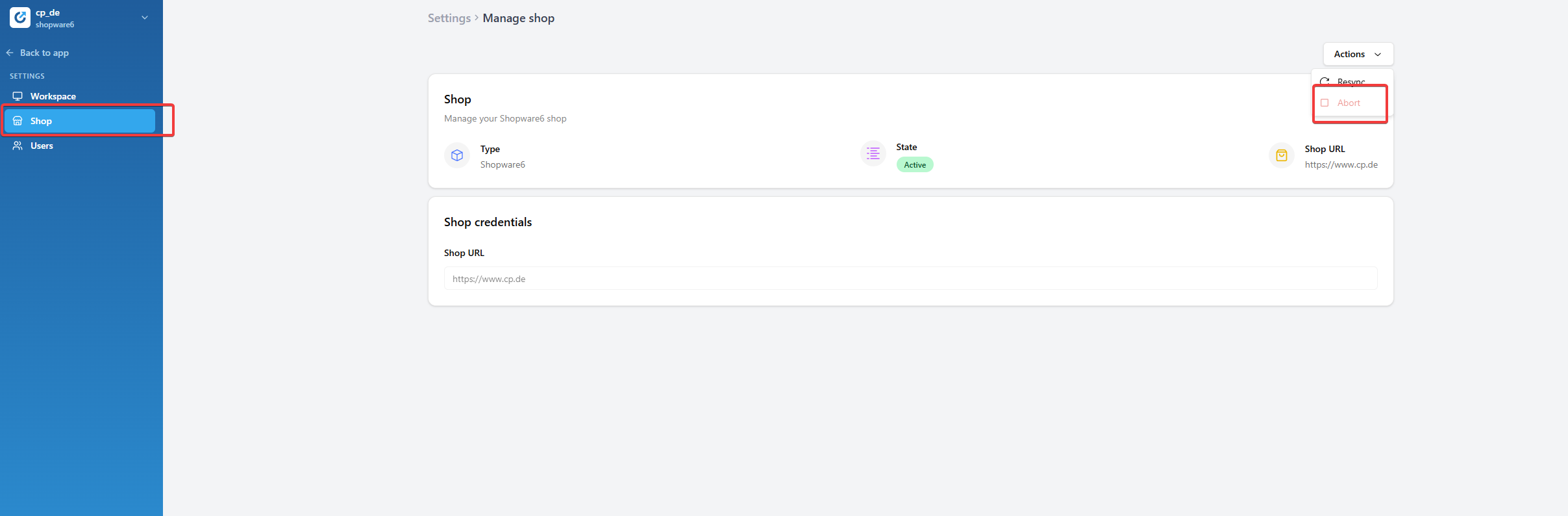
- Confirm the action if prompted.
- Wait for the process to complete. The shop state will change from Indexing to Active.
warning
Aborting a sync will stop the current indexing process. Any incomplete data synchronization will need to be re-triggered manually.
4. Continue Normal Operations
After aborting, you can:
- Run a Resync — Click Actions → Resync to re-synchronize your shop data.
- Continue working — If the shop state shows Active, you can continue using cobby normally.
When to Use This Feature
| Situation | Action |
|---|---|
| Sync stuck for more than 10 minutes | Abort and retry |
| Need to make urgent changes | Abort, make changes, then resync |
| Server maintenance required | Abort to safely disconnect |
| Error messages appearing | Abort and check shop connectivity |
Troubleshooting
Abort button is not available
- The shop may not be in an indexing state. Check the current state indicator.
- Refresh the page and try again.
- Contact cobby support if the issue persists.
Shop still shows Indexing after abort
- Wait a few seconds and refresh the page.
- Check your network connection.
- Try logging out and back into the portal.
Data inconsistencies after abort
- Run a full resynchronization to ensure all data is properly synced.
- Check the job history for any error messages.
Related
- How to Fix Connection Issues — Troubleshoot shop connectivity
- Install cobby for Shopware 6 — Initial setup guide